
Would you like to choose which page WordPress uses for your homepage and which page it uses for your blog posts list? This guide shows you how to assign both in the Lennox theme.
Use it when you want a static homepage, a separate blog page, or when your site is still showing the wrong page on the front of the site.
- What this does in Lennox
- Before you start
- Setting your homepage and blog page
- Editing what visitors see
- Saving these changes
What this does in Lennox
- Homepage: the page visitors see first when they open your site.
- Blog page: the page that lists your latest posts.
- Lennox note: the visible homepage layout is controlled by the Front Page template, and the posts list layout is controlled by the Blog Home template in the Site Editor.
That means the page assignment happens in Settings > Reading, but the design itself is edited in Appearance > Editor.
Before you start
- You need one page for the homepage and one different page for the blog.
- If you do not have them yet, go to Pages > Add Page, enter a title, then click Publish.
- A common beginner setup is a page called Home and another called Blog.
Setting your homepage and blog page
In the dashboard, go to Settings > Reading. Find Your homepage displays, then select A static page (select below).
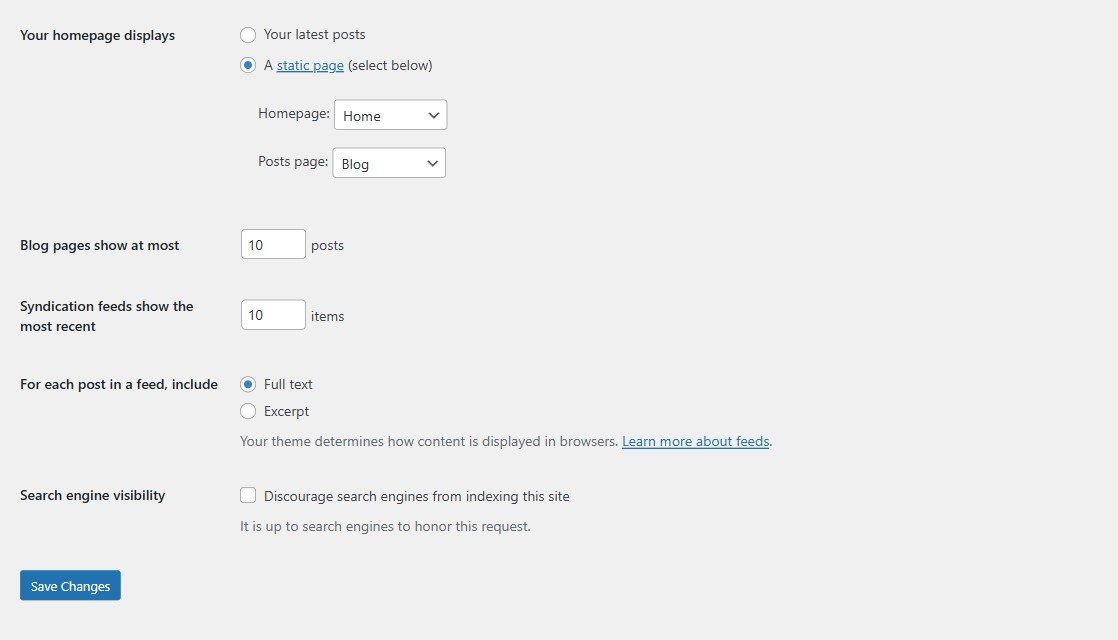
Open the Homepage: dropdown and choose your homepage. Then open the Posts page: dropdown and choose your blog page. Click Save Changes when you are done.
After that, WordPress knows which page is your homepage and which page should show your posts.
Editing what visitors see
In Lennox, assigning the pages is only the first part. To change the layout and content visitors see, use the Site Editor templates.
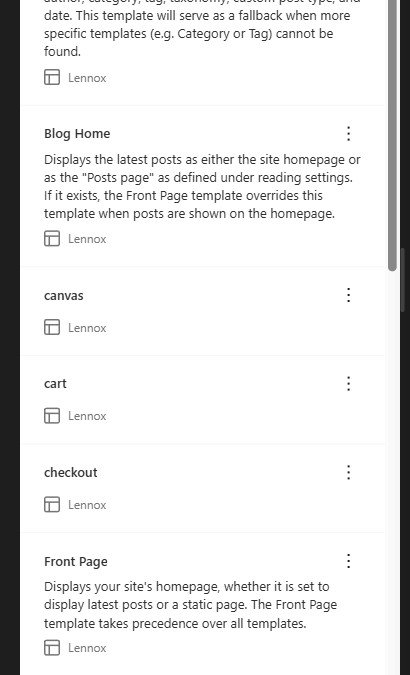
- Homepage layout: go to Appearance > Editor > Templates, then open Front Page.
- Blog page layout: go to Appearance > Editor > Templates, then open Blog Home.
- When you finish editing in the Site Editor, click Save in the top right.
This is important in Lennox because the theme already includes a ready-made Front Page template, and that template takes priority on the homepage.
Saving these changes
- Use Save Changes on the Settings > Reading screen to assign the homepage and blog page.
- Use Save in the Site Editor after editing Front Page or Blog Home.
- If a save button is disabled, WordPress has not detected a change yet.
That's it. Set the page assignments in Settings > Reading, then edit the design in the Site Editor if you want to change what visitors actually see.