
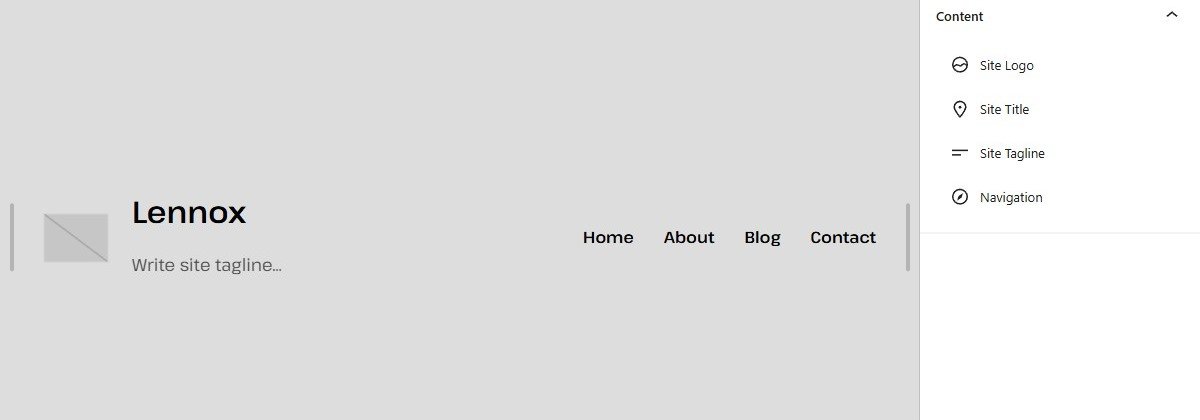
Would you like to update the top section of your site? In Lennox, the header includes the site logo, site title, site tagline, and the navigation links.
This is the area to edit when you want to change your logo, update your site title or tagline, or manage the links shown in the header.
When to edit your header
- Change your logo, site title, or tagline.
- Edit the links shown in the top navigation.
- Adjust spacing, colors, or layout in the header area.
Editing the header
To edit the header, log in to your site at /wp-admin, then go to Appearance → Editor. In the Site Editor, open Patterns, then open the template part named Header.
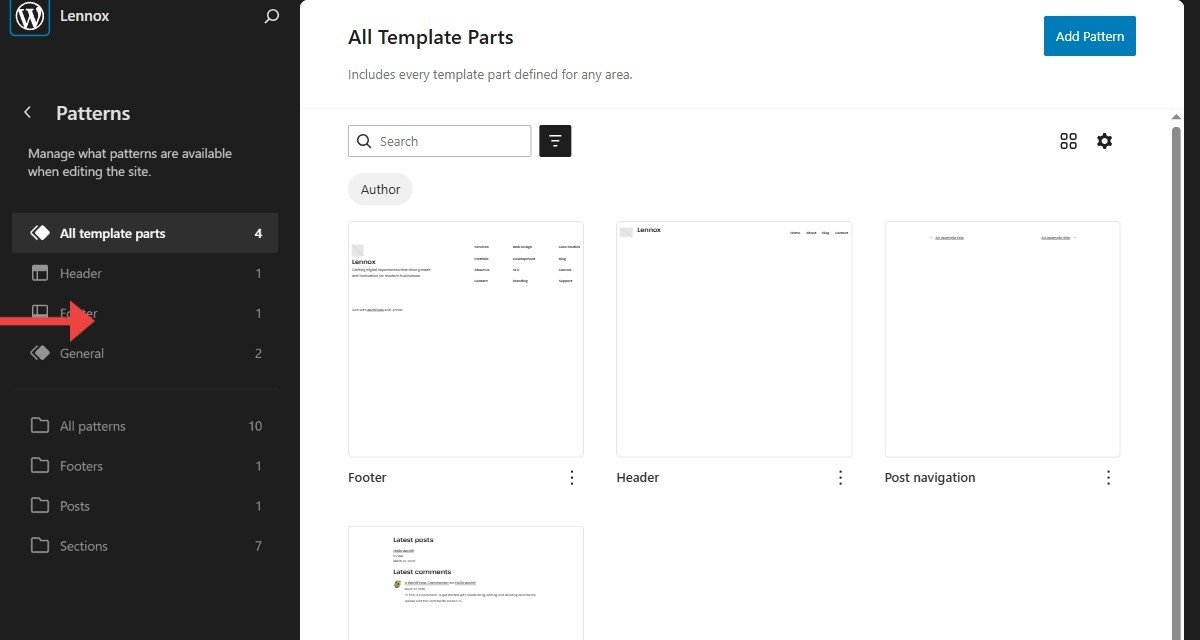
Click the part of the header you want to change. You can select the Site Logo to replace or remove the logo, Site Title or Site Tagline to change how they display, or Navigation to edit the header links. Make your changes in the editor sidebar or block toolbar.
Saving header changes
When you make a change, the button in the top right changes from Saved to Save. Click Save. If WordPress shows a second confirmation panel, keep Header selected and click Save again.
That's it. In Lennox, the header is edited from Appearance → Editor → Patterns → Header.