
Would you like to change the content at the bottom of your site? In Lennox, the footer is a shared template part, so one footer edit can update the same footer across multiple areas of your site.
This is the right place to edit footer text, links, social icons, your site logo, or your site title in the footer.
What this edits
- The shared footer used by Lennox templates.
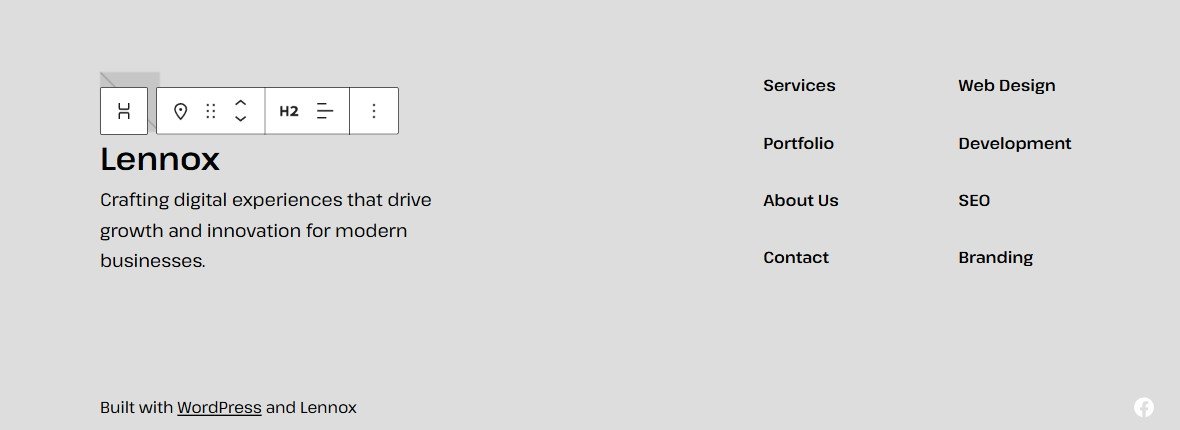
- In this theme, the footer includes the Site Logo, Site Title, a short text paragraph, three navigation columns, credits text, and social icons.
- Because it is shared, your changes can appear on the front page, regular pages, posts, and other templates that use the same footer.
Editing the footer
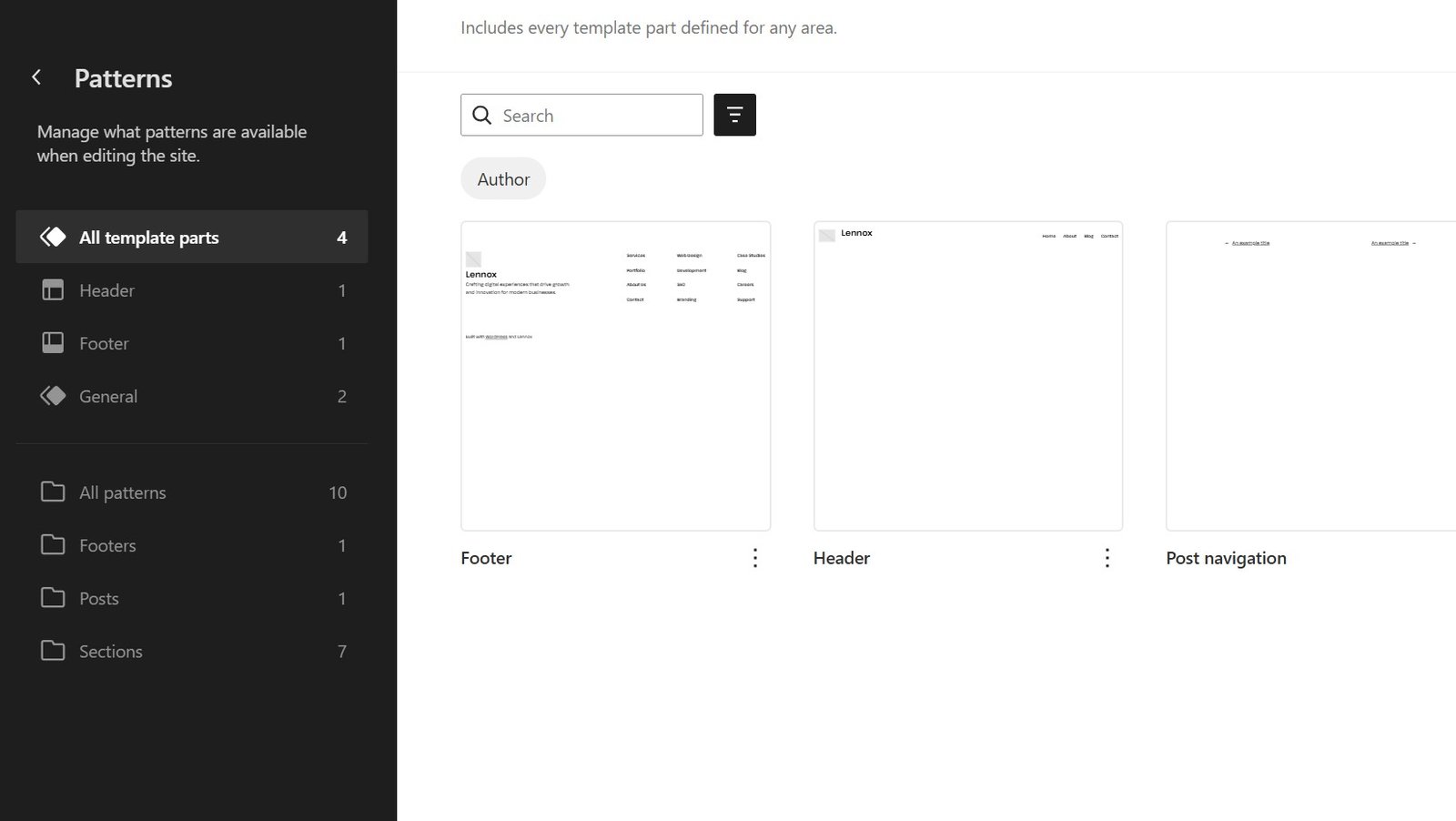
To edit the footer, go to Appearance > Editor in your dashboard. In the Site Editor, click Patterns, open All template parts, then click Footer.
Click directly on the part you want to change in the preview. For example, you can edit the text paragraph to change the footer message, edit links inside one of the navigation columns, update the credits text, change a social icon link, or replace the logo or site title.
Saving footer changes
When you have finished editing, use the button in the top right corner of the Site Editor. If nothing has changed yet, the button shows Saved. After you make a change, use Save.
After saving, refresh the front end of your site and check the footer where you expect it to appear.
That's it. In Lennox, the footer is edited from Appearance > Editor > Patterns > All template parts > Footer.