
Would you like to give your Lennox site a different overall look? In this theme, your site's color scheme is controlled in the Site Editor through Styles, so the change applies across the whole website instead of only one page.
This is a good option when you want a faster site-wide change, such as switching to a lighter style variation or going back to the default one.
When to change the color scheme
- Your site feels too dark, too bright, or off-brand.
- You want a faster site-wide change instead of editing colors block by block.
- You want to try one of Lennox's built-in style variations.
Changing the color scheme
To change the color scheme, log in to your WordPress dashboard and open Appearance → Editor. You can also use the Edit styles link from the Dashboard welcome panel if it is visible.
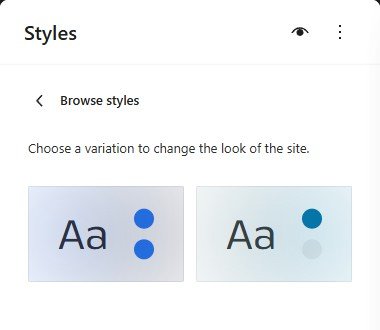
In the Site Editor sidebar, click Styles, then click Browse styles. Choose the variation you want. On the verified Lennox site, the available options were Default and light.
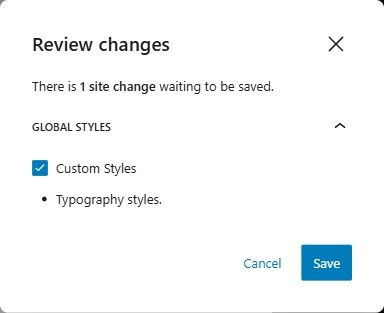
After you pick a different variation, click Review 1 change…. The number may be different on your site if you made more changes. In the Review changes panel, click Save.
How to know it saved
After saving, WordPress shows Saved and a notice that says Site updated. You may also see a View site link.
That's it. To change Lennox's site-wide color scheme, go to Appearance → Editor → Styles → Browse styles, pick Default or light, then review and save the change.