
Would you like to change how your blog posts are displayed in Lennox? This is the guide to use when you want to adjust the post list, change how many posts appear, or edit the header or footer around the blog content.
In Lennox, the main blog layout is handled by the Blog Home template in the Site Editor.
- When to change your blog layout
- Editing the Blog Home template
- What Lennox includes by default
- Saving blog layout changes
When to change your blog layout
- Your blog page layout looks too plain or too crowded.
- You want to change the post list area, header, or footer around your blog.
- You want to adjust how many posts appear on each blog page.
Editing the Blog Home template
To edit your blog layout, go to Appearance > Editor, then click Templates in the left sidebar. Open Blog Home to load the template used for your posts page.
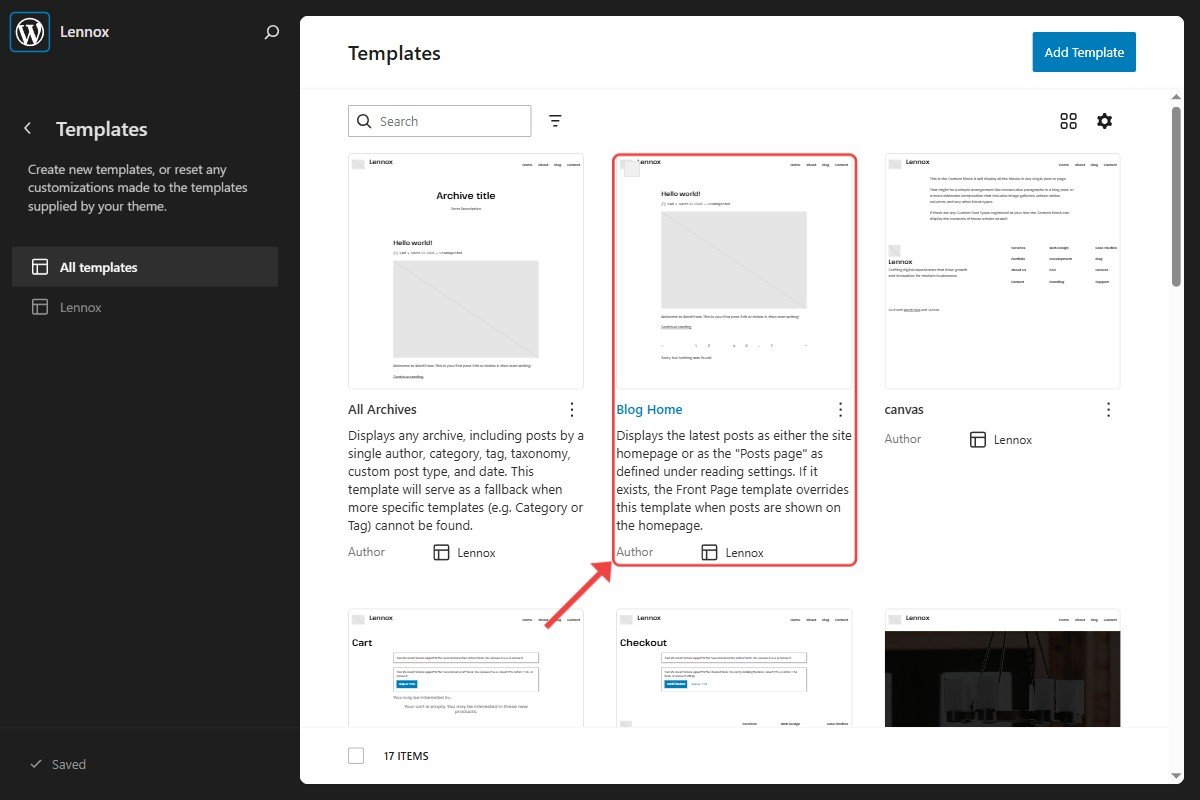
Click the area you want to change in the preview. A simple place to start is the main posts area under Content. In the verified Lennox setup, the editor shows Template and Block tabs, and the blog template includes Header, Content, and Footer.
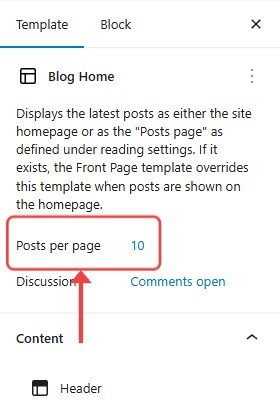
If you select the posts query area, you can change settings such as Posts per page. Keep clicking different parts of the preview until the right sidebar shows the setting you want to change.
What Lennox includes by default
In the theme code, Lennox loads a posts pattern for the blog layout. By default, that layout includes the post title, author, date, category, featured image, excerpt, and pagination.
This means small layout changes usually happen inside the Blog Home template, not in a separate theme options panel.
Saving blog layout changes
After you make a change, the top-right button changes from Saved to Save. Click Save. If WordPress opens a save panel, review the item being saved and click Save again.
Your blog layout changes are not live until you save them. If your homepage does not update after editing, also check whether the Front Page template or Settings > Reading is affecting what visitors see.